After trying out many vibe coding tools recently, I ultimately chose the combination of VS Code and GitHub Copilot. The main reasons are familiarity, cost-effectiveness, and extensibility. This article details how to efficiently leverage VS Code for vibe coding development, covering environment setup, workspace and extensions, UI layout, shortcuts, GitHub integration, and Copilot Chat modes and tips.
Environment Setup: VS Code and Copilot Extension Configuration
Ensure VS Code Version: First, make sure you are using the latest version of VS Code (>=1.102). Advanced Copilot Chat features (such as Agent mode and multi-tool invocation) are fully supported in VS Code 1.102 and above. It is recommended to use VS Code Insiders or the latest stable release to access the newest Copilot Chat features.
Install GitHub Copilot Extension: Install the GitHub Copilot main extension from the VS Code marketplace. If you have a Copilot subscription, sign in with your GitHub account and enable the extension to use code completion and other basic features. Then, install the GitHub Copilot Chat secondary extension (“Copilot Chat”). After installation, you will see the Copilot Chat icon (two speech bubbles) in VS Code. Click the icon or run the “Open Chat” command from the command palette to open the Copilot Chat panel.
Enable Copilot Chat Mode: Ensure that the Copilot Chat feature is enabled in VS Code settings. If you are using a pre-release version, you may need to enable
GitHub Copilot: Chatrelated options in Settings. Similarly, MCP support (Model Context Protocol) should be enabled by default (settings:github.copilot.chat.mcp.enabledorchat.mcp.enabled), and usually requires no manual configuration. MCP allows Copilot to use external tools and enables Agent intelligent mode.Configure GitHub MCP Server: To allow Copilot to directly perform GitHub operations (such as creating branches, pull requests, managing issues, etc.), you can configure a GitHub MCP server. In the VS Code Extensions view, search for
@mcp, click “Browse MCP Servers” to open the server list, select a GitHub-related MCP server in your browser, and click install. Once installed, you can use GitHub-integrated tools in Copilot Chat. For example, Copilot Chat can invoke “create branch” or “generate pull request” skills to operate your repository directly. Note: MCP servers can run arbitrary code—only install servers from trusted sources and follow prompts to trust the server on first use.Project Workspace Setup: Open your project folder as the VS Code workspace. You can save your project as a VS Code workspace (
.code-workspace) to persist project-specific settings. Create a.vscodedirectory to store project configurations, such as debug settings and tasks. For Hugo projects, you can add tasks in.vscode/tasks.jsonto start a local preview server or build the site. For example, set up a Build task to run thehugocommand. This not only makes manual execution easier, but also allows Copilot Agent mode to automatically run your defined build tasks when needed (such as after major changes).Recommended Extensions: For Hugo frontend development, consider installing these useful VS Code extensions:
- Hugo Extensions: Extensions like Hugo Language and Syntax Support provide syntax highlighting and snippets for Hugo templates (Go template syntax); Hugo Runner allows you to run the Hugo server with one click inside VS Code.
- Frontend Development Extensions: Prettier (code formatting), ESLint (linting), Tailwind CSS IntelliSense (if your site uses TailwindCSS), etc., to improve frontend development experience.
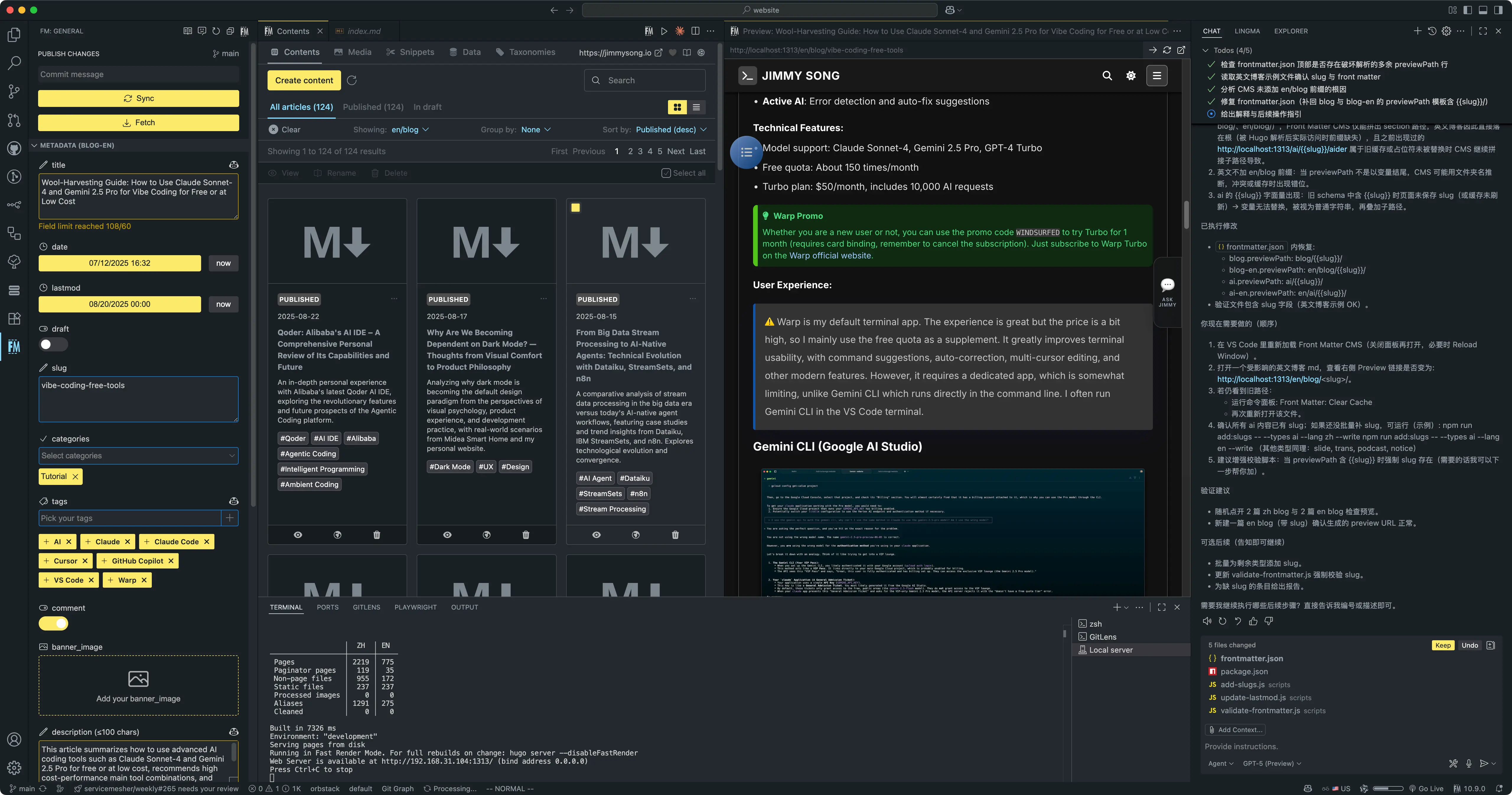
- Front Matter CMS (optional): A plugin for editing Markdown content and front matter metadata.
- GitLens (optional): Enhances Git capabilities in VS Code for viewing history and better GitHub integration.
After installing these extensions, adjust settings in Settings as needed, such as enabling format on save or configuring Hugo extension parameters to fit your project.
The image below shows the Front Matter CMS plugin interface:
Optimizing VS Code Layout (Multi-View on Large Screens)
A large screen allows you to fully utilize VS Code’s flexible layout and display more content at once. Here are some layout optimization tips:
Open both the primary sidebar (left file explorer) and the secondary sidebar (right Copilot Chat) in VS Code to make the most of an ultra-wide screen.
Dual Sidebar Display: VS Code supports the Secondary Side Bar feature, allowing sidebar views on both sides of the screen. Keep the file explorer or source control in the left primary sidebar, and open the secondary sidebar on the right with the Copilot Chat panel. This way, you can browse project files on the left and chat with Copilot on the right without interference. To enable: right-click the top bar, select “Layout Controls”, then click Toggle Secondary Side Bar (or use CMD+Alt+B). You can also drag any view (such as Copilot Chat) into the right sidebar.
Panel Position Adjustment: By default, VS Code places the panel (terminal, debug console, problems, etc.) at the bottom. You can move the panel to the left or right for vertical display. For example, to have the terminal on the right, run “View: Move Panel Right” or select “Right” in “View > Appearance > Panel Position”. This lets you view logs/output alongside code. You can also maximize the panel (via the double-arrow button or “View: Toggle Maximized Panel”) for full-screen terminal viewing.
Multiple Editor Splits: Large screens allow you to view multiple files at once. Drag tabs to the edges of the editor area to split vertically or horizontally, or use
CMD+\to quickly split the current file. VS Code supports grid layouts (e.g., two columns and two rows). For frontend work, you can code on the left and preview on the right (using Live Server or Hugo Runner), achieving a WYSIWYG experience.Centered Layout and Zoom: If you prefer focusing on a single file on an ultra-wide screen, enable “Centered Editor Layout”. This centers the editor and limits line length for better readability. Adjust VS Code’s zoom level or font size to fit high-resolution screens and keep content clear in multi-window setups.
Quick Hide/Show UI Elements: Master VS Code’s UI toggles. Use
CMD+Bto hide the sidebar,CMD+Jto toggle the panel,F11for fullscreen, orCMD+K Zfor Zen Mode. These shortcuts help maximize code space when needed.
By customizing your layout, you can fit code, terminal, chat, and preview all at once on a large screen, creating a personal high-efficiency “cockpit” for development.
Common Shortcuts and Efficient Operations
While you may be used to VS Code’s default shortcuts, mastering efficient combinations will greatly boost productivity. Here are some commonly used shortcuts:
| Category | Shortcut/Action | Description |
|---|---|---|
| Navigation | CMD+P | Quickly open files by fuzzy searching filenames |
CMD+Shift+P | Open command palette to run any VS Code command | |
Ctrl+Tab / Ctrl+Shift+Tab | Switch between recently opened files | |
CMD+Shift+E | Switch to Explorer view | |
CMD+Shift+F | Switch to Search view | |
CMD+Shift+D | Switch to Debug view | |
CMD+Shift+X | Switch to Extensions view | |
| Editing | Option + click | Multi-cursor editing |
CMD+Alt+Down/Up | Insert cursor above/below | |
Alt+Up/Down | Move current line or selection up/down | |
Shift+Alt+Down | Duplicate current line below | |
Shift+Alt+F | Format current file (requires formatter) | |
CMD+/ | Toggle line comment | |
| Search/Replace | CMD+F | Find in current file |
CMD+H | Replace in current file | |
CMD+Shift+F | Global search | |
CMD+Shift+H | Global replace | |
| Terminal | `Ctrl+`` (backtick) | Open/close integrated terminal |
CMD+K | Clear terminal | |
| Git | Ctrl+Shift+G | Open source control view for quick commits |
CMD+Enter | Commit changes after entering message | |
| Copilot | Tab / Esc | Accept/ignore Copilot suggestion |
Alt+[ / Alt+] | Switch between Copilot suggestions | |
CMD+Shift+I | Open and focus Copilot Chat input (default, can be customized) |
For the full list of shortcuts, refer to the official VS Code documentation or press
CMD+K CMD+Sin the editor to view the keyboard shortcuts reference.
These are just some of the most useful shortcuts. Mastering them will maximize your editing and navigation efficiency.
GitHub Integration and Solo Development Workflow
VS Code has excellent built-in support for GitHub, meeting the needs of solo developers for version control and cloud development.
Integrated Git Operations: In the Source Control panel on the left, you can view changes, commit, and push to GitHub directly. As a solo developer, you can usually commit directly to the main branch. After each change, enter a commit message in the source control view, click the ✅ icon to commit, then select Push to upload to GitHub. With VS Code, you can handle most daily Git operations without leaving the editor.
Pull Requests and Issues: For personal projects, you may rarely use pull requests, but the GitHub Pull Requests & Issues extension lets you browse issues and create pull requests within VS Code. If you want Copilot to help generate pull request descriptions, use Copilot Chat to summarize changes and generate a PR description after committing, then copy it over. With the GitHub MCP server enabled, you can even use the
@githubtool in Copilot Chat to create or merge pull requests—these skills let AI perform common repo operations for you (e.g., “create a new branch and commit current changes” or “open a pull request”).Codespaces Cloud Development: When you need to code in the cloud, GitHub Codespaces is ideal. On your GitHub repo page, click “Code” and select Codespaces to create a cloud environment. Locally, use the Remote – Containers/Codespaces extension to connect to Codespaces as if it were a remote VS Code. In Codespaces, you have a pre-configured container environment and can run Hugo services, with Copilot available. Your settings (extensions, shortcuts, etc.) can sync via VS Code Settings Sync, making local and cloud development nearly identical.
Personal Project Collaboration: Even if you work alone, you can use GitHub’s project management tools for efficiency. Use GitHub Issues for to-dos and bugs, and GitHub Actions for CI/CD. These can be managed in VS Code via extensions or CLI. For example, install the GitHub Actions extension to monitor workflow status, or ask Copilot Chat for CI/CD configuration advice.
In summary, VS Code provides a one-stop experience for solo developers from coding to commit. With Copilot Chat’s GitHub integration, many operations can be completed conversationally, saving time and effort.
GitHub Copilot Chat Modes: Ask, Edit, Agent
GitHub Copilot Chat offers Ask, Edit, and Agent modes, each suited for different scenarios. Mastering when to use each mode will maximize your AI assistant’s effectiveness:
Ask Mode: The basic chat mode that does not modify code. Use Copilot Chat as an “instant Q&A” assistant:
- Use cases: Ask about concepts, usage, code explanations, or request code snippets. For example: “What is a JavaScript debounce function?”, “Explain this Python loop”, or “How do I write a centered button with Tailwind classes?”. Copilot Chat uses your project context to answer but does not modify files.
- How to use: Ask questions directly in the chat box. If your question involves code, select the code in the editor before asking, such as “What does this code do?”. Ask mode is ideal when you are confused, unsure about usage, or need inspiration.
Edit Mode: In Edit mode, Copilot Chat can directly modify your code based on natural language instructions for the current file or selection. It acts as a “helper engineer”, but all changes are shown as a diff for your review before applying.
- Use cases: Perform local, explicit code changes or refactoring, speeding up repetitive tasks. For example, select code and say “Refactor this to async/await style”, and Copilot will suggest changes. You can even operate across files: select multiple files to insert null checks, add logging, etc.
- Features: Copilot Chat lists the diffs in Edit mode, letting you preview changes and decide whether to accept them. This ensures you stay in control. Edit mode is best for small, incremental, safe changes (e.g., batch renaming variables, optimizing functions).
- Scenarios: When refactoring old code or applying simple patterns, Edit mode is efficient. For example, “Add type annotations to all functions in this file” or “Change all string concatenations to template strings”.
Agent Mode: Agent mode is the most powerful and autonomous. Give a high-level goal or instruction, and Copilot Chat acts as an “intelligent agent”, planning and executing a series of actions across your project. It may write and modify code, run commands, call tools, and iterate until the goal is met.
- Use cases: For complex, cross-file tasks or automation. For example, “Add a Redis cache layer to this project” or “Fix a complex bug involving multiple modules”. Copilot analyzes which files to change, what configs to create, and may run terminal commands to install dependencies or build.
- Features: Agent mode holds more context and can multi-step reason. It may open multiple files, run builds or tests, and request your permission for risky operations (like deleting files or installing software). You can adjust Agent mode’s tool/command approval policy in settings, but it defaults to cautious prompts. In Agent mode, you hand over some “driving” to AI, supervising the results.
- Intelligent Iteration: Agent mode’s strength is self-correction and iteration. If the first attempt fails (e.g., syntax error or failed test), Copilot will try to fix and retry until success or a set number of attempts. This reduces your debugging burden. For example, it may change code, run tests, and adjust until tests pass.
- Scenarios: Use Agent mode for “big tasks”—e.g., scaffolding a project from README, or large-scale architecture changes. Be as clear as possible about your goals and constraints so Copilot acts as intended.
In summary, Ask mode is for answers and suggestions without code changes; Edit mode performs controlled, explicit edits; Agent mode handles global, multi-step tasks with maximum autonomy. Choose the right mode for your task to improve collaboration and results.
Copilot Chat Advanced Tips: Commands, Tools, and Prompt Writing
To interact more effectively with Copilot, learn about special command mechanisms and prompt engineering tips.
Chat Slash Commands: / Commands
Copilot Chat has built-in slash commands to simplify common scenarios. Typing “/” in the chat input shows available commands. These commands let you invoke specific features without writing complex prompts:
/explain– Explain code: Automatically explains the current file or selected code. Use when reading unfamiliar code for quick comments or explanations./fix– Fix issues: Analyzes selected code for errors and suggests fixes. Use for quick troubleshooting./tests– Generate tests: Generates unit tests for the current file or selection. You can specify frameworks, e.g., “/tests using Jest”./clear– Clear conversation: Starts a new chat session, clearing context.- Others include
/help(usage help),/rename(rename session), etc.
Slash commands vary by context and can be extended by the community and plugins. Use “/” and Tab to browse available commands. These commands quickly leverage Copilot’s abilities and improve communication efficiency.
Mentions Context: @ References
Copilot Chat supports @ mentions to add context or specify assistant “roles”. Typing “@” in the chat input shows options, including workspace files, GitHub discussions/issues, and predefined “expert assistants”. Proper use of @ enriches Copilot’s information:
Attach File/Code Context: Use
@filenameto attach a file’s content for Copilot to consider. For example,@config.tomladds your Hugo config for analysis. You can also attach issues or PRs (with the GitHub Pull Requests & Issues extension).Chat Participants (Expert Assistants): Copilot offers special “chat participants” for domain expertise:
@workspace– Project context: Copilot considers your entire workspace structure.@vscode– VS Code assistant: Focuses on VS Code commands and features.@terminal– Shell assistant: Helps with terminal commands and errors.@github– GitHub operations: For invoking GitHub integration tools.
Using @ to select the right assistant helps focus Copilot’s knowledge and improve answer accuracy.
Chat Variables: # Context Variables and Tool Sets
Typing “#” in chat provides chat variables to insert parts of your code environment:
For example, #file attaches the current file, #selection attaches the current selection, #function for the current function, etc. These variables let Copilot access necessary context without manual copy-paste.
Tool Sets: With multiple MCP tools enabled, you can use “#toolset” to restrict Copilot to certain tools. For most users, the default tool set is sufficient.
Prompt Engineering Tips
Even with commands and symbols, writing clear prompts is key for effective Copilot interaction. Here are some tips:
- Macro to Micro: State the overall goal first, then list specific requirements.
- Provide Examples: Example-driven prompts help Copilot match your expectations.
- Break Down Complex Tasks: Split complex needs into multi-step conversations.
- Avoid Ambiguity: Be explicit with references and avoid vague pronouns.
- Control History and Context: Use
/clearto reset context if needed. - Follow Good Coding Practices: Specify code style, comments, or edge cases in your prompts.
- Iterate and Refine: Treat Copilot as a conversation partner—ask for improvements if needed.
By applying these tips and leveraging Copilot Chat’s context awareness, you can fully enjoy the acceleration and creativity of “vibe coding”.
Make Use of Command-Line Tools
In VS Code’s terminal, you can run AI CLI tools like Gemini CLI or Qwen CLI for quick Q&A, code generation, or batch processing. For example:
- Gemini CLI: After installation, run
gemini -p "your question", e.g.,gemini -p "Write a bubble sort in Python". Gemini returns code snippets directly. It supports multi-turn conversations and context references, ideal for quick scripts or explanations. - Qwen Coder: Use
qwento start, built on Gemini CLI but powered by the Qwen large model, with a larger free quota.
These tools work inside VS Code, can access open files, and edit files directly from the command line, greatly improving efficiency. They also offer generous free quotas.
Conclusion
By carefully configuring your VS Code environment, mastering Copilot Chat modes, and applying prompt engineering techniques, you can seamlessly blend development experience with AI intelligence and enter a true “vibe coding” state. In this mode, repetitive work is automated, letting you focus on creativity and logic while Copilot handles the tedious parts.
Remember, making the most of AI development assistants is an ongoing process. Experiment: use Ask mode for questions, Edit mode for batch refactoring, and Agent mode to let Copilot drive a small feature. Each mode brings new surprises and insights. As you practice, you’ll find the AI collaboration style that best fits your workflow.
Finally, always review Copilot’s proposed code carefully. AI is powerful but can make mistakes or produce unexpected results. Stay in control: review every change to ensure code quality and style. Once you’re comfortable, you can even customize your own MCP. With a good partnership with Copilot, your solo development efficiency will reach new heights—and the process will be even more enjoyable.
References:
- GitHub Copilot Official Documentation and blog
- VS Code Official Documentation (layout customization, MCP configuration, shortcuts)
